 Guilda Work
Tasks
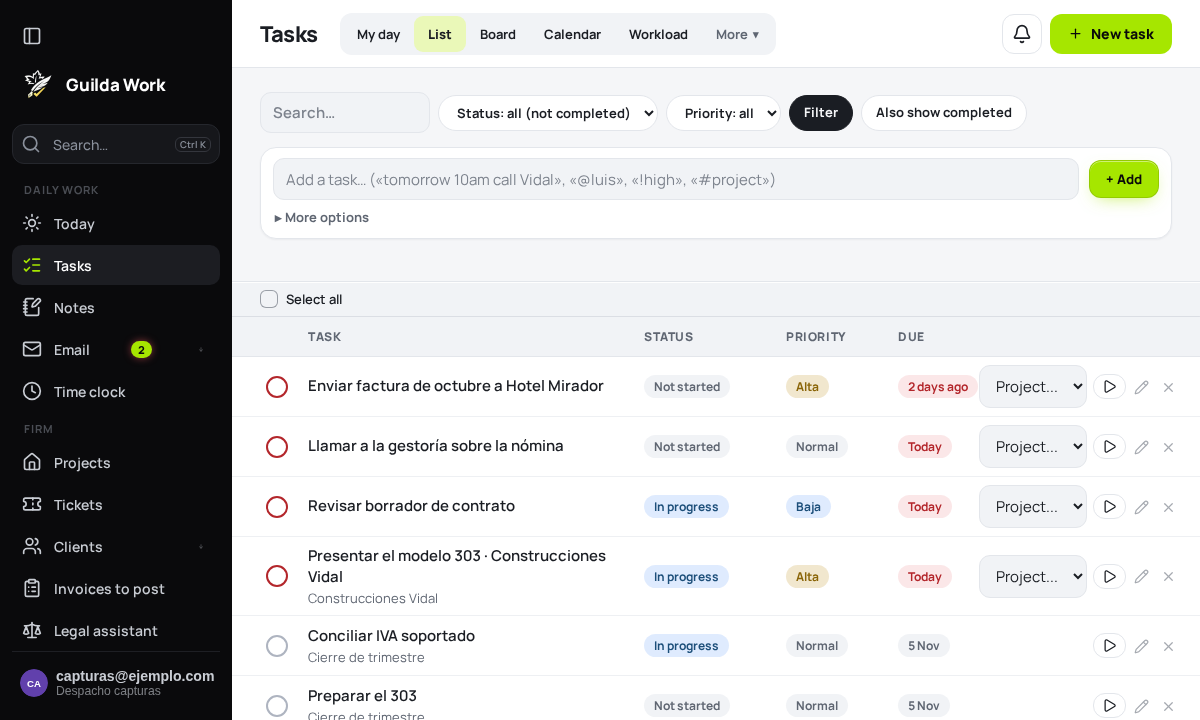
Open in Guilda WorkOutlook-style task list, with due dates and priority.
Updated on
The Tasks section is independent of your projects — designed for a classic to-do list, with a subject, due date, priority and an optional category.
Create a task
From Tasks, fill in the "New task" form: subject, start and due dates (optional), priority, and whether to link it to a project or to a free-text Outlook category.
Quick add with @, # and !
The Add task… box understands free text: "Friday 10am request statements @luis !high #VAT". Typing @ offers the people in your office, # your projects and ! the priority (high, normal or low). Move through the options with ↑ and ↓, choose with Enter or Tab, and close the list with Esc.
Under the box you will see, live, what it understood: the date and time, the person, the project and the priority. Anything it does not recognise stays in the task title, followed by a question mark, so you can see it before adding the task. The same works in each project's quick add.
Available views
- List: all your tasks, with filters by text, status, priority and category.
- My day: what is overdue, what is due today, what you have in progress and what has been assigned to you (more information).
- Board: your tasks in status columns, left to right. Drag a card to another column (or use the card's selector) to change its status.
- Calendar: monthly/weekly/daily view, with your tasks and — if your firm keeps a tax calendar — the tax deadlines of the same day.
- Workload: weekly plan per team member.
- Templates and Recurring: create tasks in one go or automatically.
- Sync: import/export tasks in
.ics/.csvformat, useful if you already keep tasks in Outlook or another calendar.
Group, search and edit in the list
The Group by selector in the list splits tasks into collapsible blocks by client, project, owner, date (overdue, today, tomorrow, this week…), status or priority, each with its task count. Grouped, the list is not paginated and shows up to 200 tasks: filter to see the rest. If you save a view, it remembers the grouping.
Text search does not only look at the subject: it also finds what is in the description, the subtasks, the comments and the client's name.
And without opening the task you can change its priority or due date by clicking its label on the row: choose the new one and it is saved at once. A completed task, or one that is read-only for you, cannot be edited from the list.
Complete, edit and delete
Mark a task as completed with the tick button at the left of each row. The pencil opens the full edit form. When you delete, the task goes to the trash — you can undo it from the notice that appears right after deleting.
Pagination
If you have many tasks, the list is paginated automatically — use the "Previous"/"Next" buttons at the bottom.
More about tasks
- My day: what you need to look at today.
- Subtasks, reminders and time.
- Tasks as a team: assigning, sharing and team workload.
- Templates and recurring tasks.