 Guilda Work
Subtasks, reminders and time
Open in Guilda WorkSplit a task into steps, get alerts and record the time spent.
Updated on
Inside each task (open it from the list with Edit) you have several tools to manage it better.
Subtasks
Add steps with New subtask and tick or untick them as you progress. On the Board and in the list you will see the progress (for example, "2 of 5 steps").
Previous task
With Wait for task… you indicate that this task depends on another. While any previous task is not completed, you cannot start or complete this one. When you complete the previous task, it unlocks by itself.
Reminders
On the task, Add reminder lets you choose:
- a shortcut (1 day before the deadline, 1 hour before or When due) or a specific date and time;
- where to alert you: app and mobile, email, or both.
When an alert goes off you can snooze it (1 hour, tomorrow at 9:00 or 1 week) or remove it.
Time spent
Under Time spent you see what has been recorded so far. To record more, pick the project to charge it to and press Start the timer. Only one timer can run at a time: stop it from the task list before starting another. The time counts in the history and the statistics.
You can also set an estimate (for example 1h30 or 45 min; a bare number is
read as hours) to compare against what has been recorded.
Comments and activity
Each task has Comments: type @ to mention a colleague. The Activity log
records who created, edited, assigned, commented on or completed the task.
Views
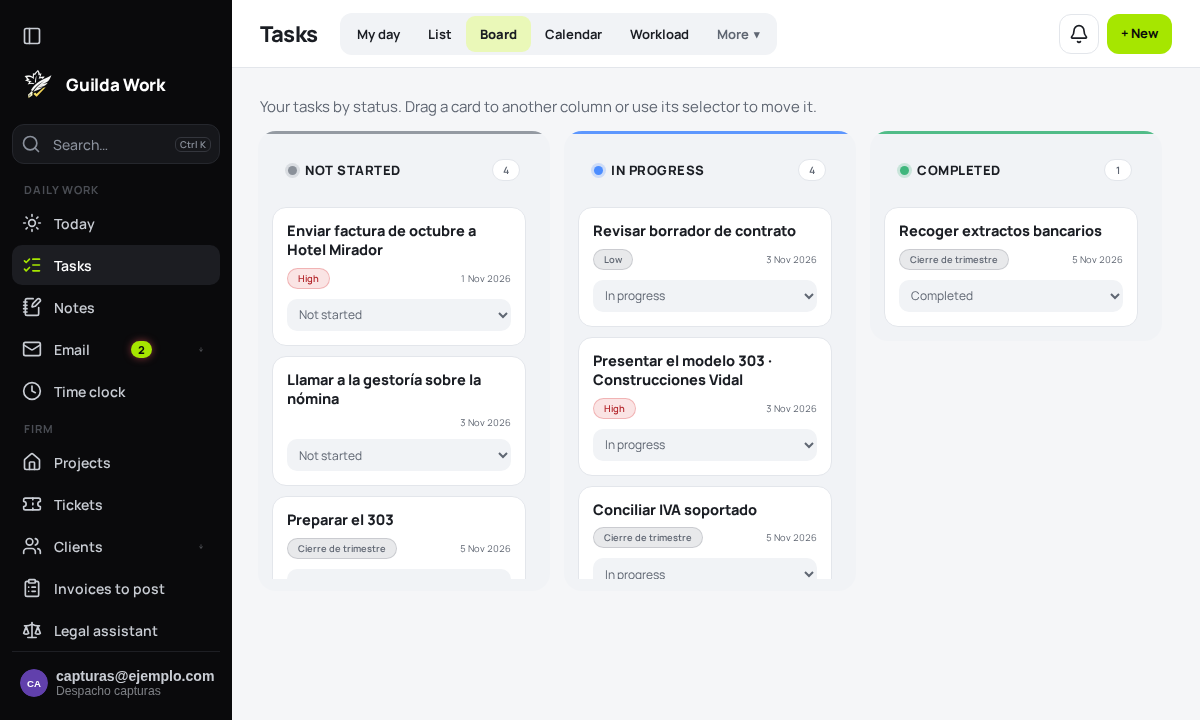
- Board: your tasks by status. Use the Move to selector on each card to move it to another column.
- Calendar: tasks with a date, shown on the calendar.