 Guilda Work
Inbox, composing, categories and rules.
Updated on
To add your first account, see Connect your email account. This guide covers the rest of the features, once you already have email synced.
Compose and reply
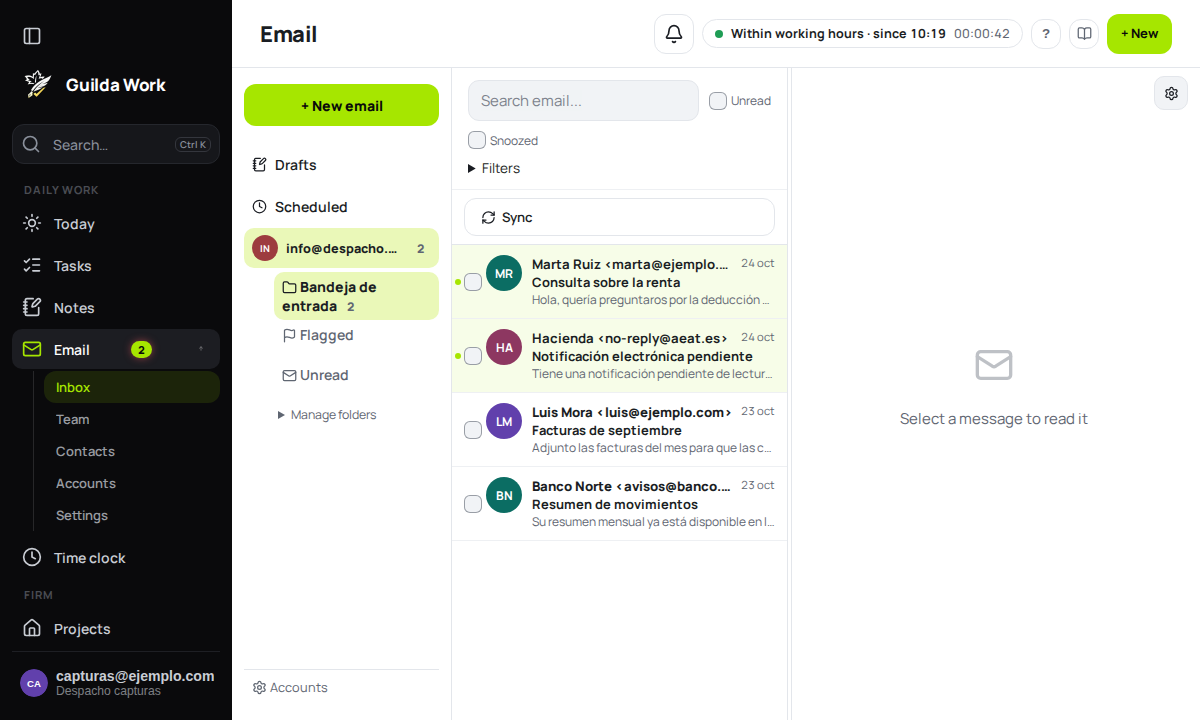
The New email button opens the compose editor, with recipients, attachments and your signature already inserted if you have one set up. From an open message you can reply, reply all or forward directly.
If your text mentions an attachment ("I attach the form…") and you have not attached anything, pressing Send makes Guilda Work ask before sending. The quoted message you are replying to and your signature do not count.
Bulk actions
Select several messages with the checkbox on each row to show the bulk-action bar. Select all, above the list, ticks every message at once; Shift and a click on another checkbox ticks the whole stretch in between.
With messages ticked you can: mark read or unread, flag, archive, send to spam (or return to the inbox those already in spam), create a task for each message (with its client and a link to the email), snooze (this afternoon, tomorrow or next Monday), assign a category, assign a client, move to another folder or delete.
Categories and automatic rules
From Mail settings you can create your own categories (with a colour) and rules that automatically assign a category to messages meeting a criterion, so you don't have to classify each one by hand.
Snooze a message
If an email needs action but not right now, use Snooze: choose a date and time, and the message is hidden from the inbox until then (you can include snoozed messages in the view with the corresponding checkbox).
Image privacy
If the sender is not on your trusted list, the email's images are hidden for privacy. You can show them just that once or trust the sender for future emails.
More about email
Undoing sends, scheduling them, conversations, turning an email into a task or note and the AI help are in Email: scheduled sending, conversations and quick actions.