 Guilda Work
Bulk changes: propose, confirm and undo
Open in Guilda WorkChange several opportunities or due dates at once, with a preview and a way back.
Updated on
Bulk changes work the same in Sales (opportunities) and in Guilda Fiscal (due dates): they are never applied all at once.
The three steps
- Propose. Tick the rows, choose what to do and press Review the change. Nothing changes: it shows how many rows would change and which are skipped and why.
- Confirm. You have an hour to apply it. If something changed in the meantime, that row is skipped: nobody else's work is overwritten. In Sales, sending to the bin asks you to type the count.
- Undo. For 90 days, Undo this change puts each row back as it was, except those that have been changed again.
What you can do
- Sales: change stage, change owner, postpone the expected close or send to the bin.
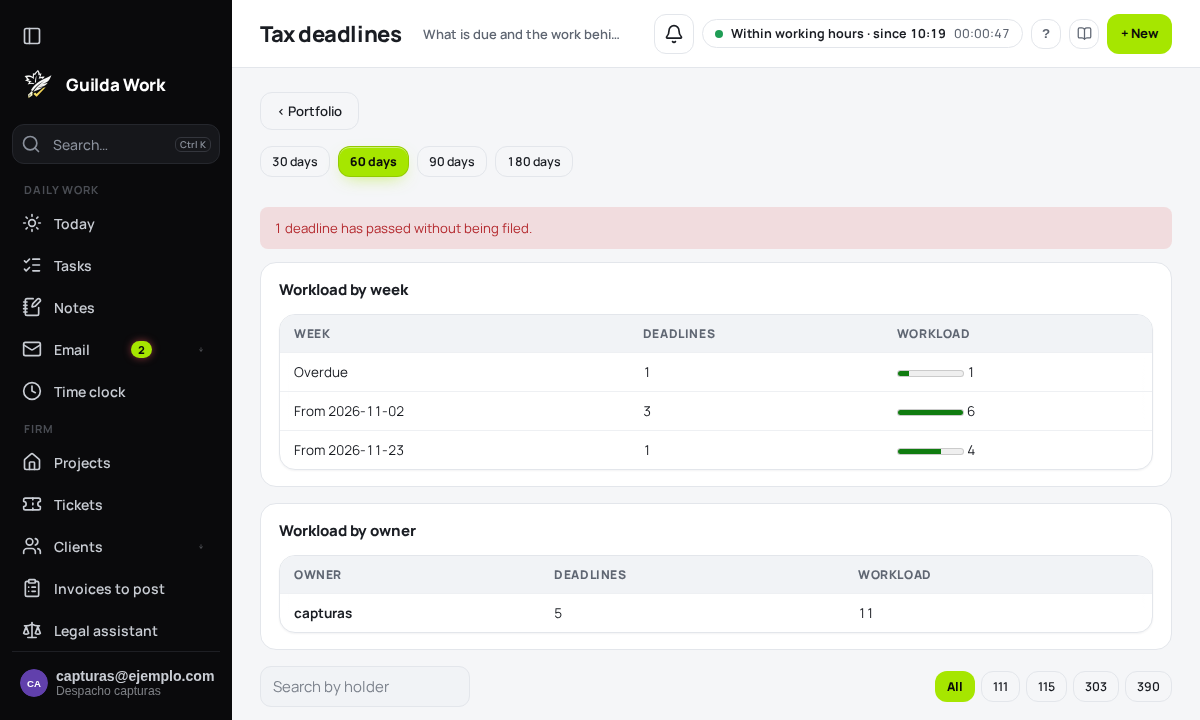
- Guilda Fiscal (Change several at once in Deadlines and workload): change owner or postpone the follow-up date (1 to 90 days, with a mandatory reason).
Important
Postponing moves the date the firm tracks, not the legal filing deadline. Marking as filed is not done in bulk. The Bulk change history keeps everything that was done, and the AI assistant follows the same rules.
Related guides
Documents to sign from the client file
Engagement letter, SEPA mandate, AEAT representation authorisation and consents, signed with Documenso.
Firm branding
Put your firm's name, logo and colour in place of Guilda Work's.
Tax control: alerts, transfers and offices
What needs action, handing clients between people and sharing permissions.