 Guilda Work
Shift schedule
Open in Guilda WorkWho works what each day, and how it is organised.
Updated on
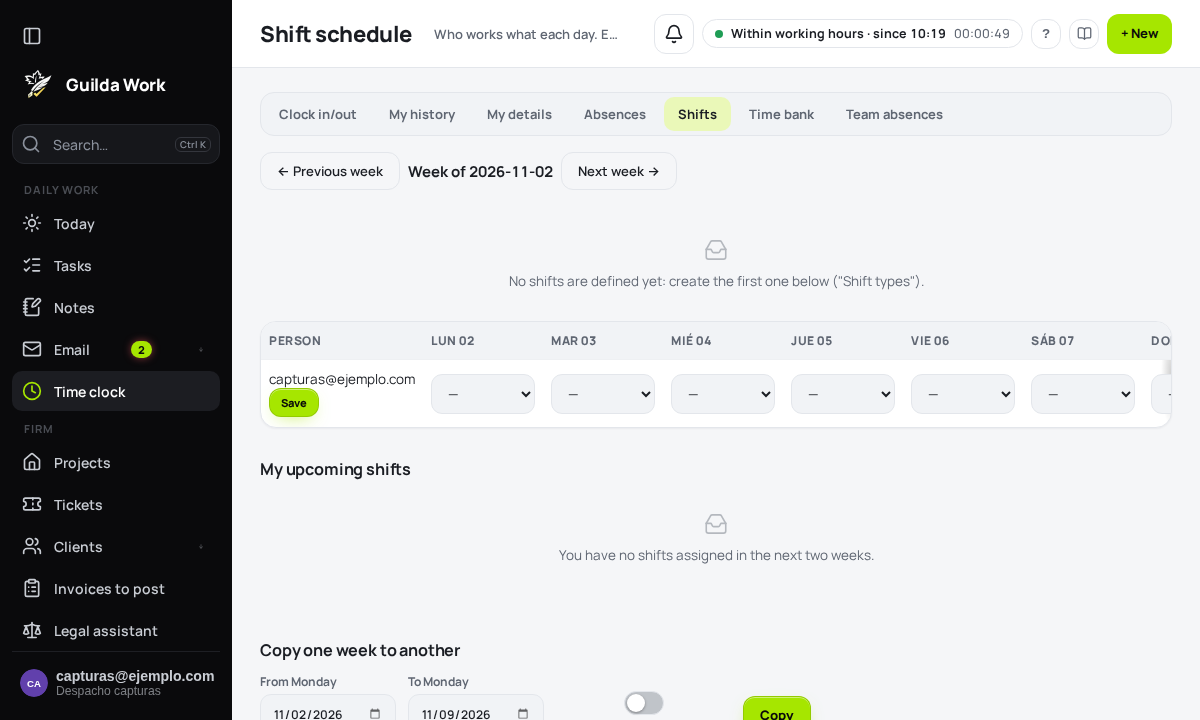
Time clock → Shifts shows the week's schedule: which shift each person has each day. The whole team can see it; only whoever manages the time clock can change it. Each person gets a notice when their shift is changed.
Reading the schedule
Each row is a person and each column a day. You will see the shift name with its hours (for example, "Morning 08:00–15:00"), or the absence label if that person is on holiday, leave or sick leave. The arrows move between weeks, and below you have My upcoming shifts for the next two weeks.
Organising it (whoever manages the time clock)
- Shift types: create the office's shifts with a name, start and end time and colour. A shift can cross midnight (22:00–06:00). If you no longer use one, archive it: it disappears from future days but keeps the history.
- Assigning: in each person's row, choose the shift for each day and press Save. A person has at most one shift per day; choosing another replaces the previous one and "—" removes it. They get a single notice with what changed.
- Copy one week to another: repeats the schedule for the whole team. By default it respects what was already assigned, and skips the days when someone is absent.
A shift cannot be assigned to someone with an approved absence that day; and when an absence is approved, the shifts it covered are removed.
From the assistant
The AI assistant can tell you your shifts and show the schedule, and managers can ask it to assign a shift (with confirmation before acting).