 Guilda Work
Devices and API tokens
Open in Guilda WorkRevoke lost phones and create tokens for integrations and scripts.
Updated on
Under My devices you manage what can get into your account without going through the browser.
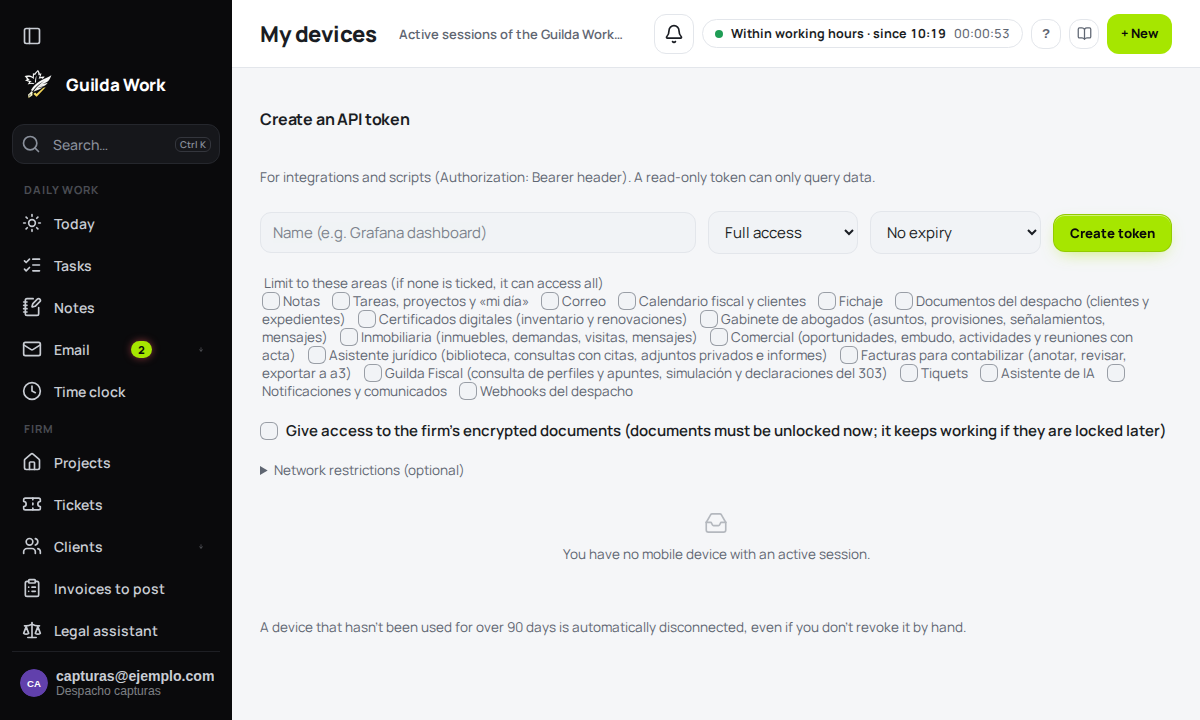
Mobile devices
Each active session of the mobile app appears with its name, when it connected and its last use. If you lose a phone, press Revoke access: it will have to sign in again. A device that has gone more than 90 days without being used is disconnected automatically.
Create an API token
A token is for integrations and scripts (sent in the Authorization: Bearer header). To create one:
- Give it a name that explains what it is for (for example, "Grafana dashboard").
- Choose the permission: Full access or Read only. A read-only token can only look up data.
- Choose the expiry: no expiry, 30 days, 90 days or 1 year.
- Optionally, limit it to certain areas. If you tick none, it can access all of them.
- Press Create token and copy it at that moment: it is not shown again.
Tokens with no expiry are deactivated automatically through inactivity. Keep each token like a password.
Limiting where a token can be used
When creating the token you can add two optional restrictions (separate them with commas or line breaks):
- Allowed IP addresses (for example
203.0.113.7, 10.0.0.0/24): the token only works from those addresses. Useful for servers with a fixed IP. From any other IP, the API answers 403. - Allowed web origins (CORS) (for example
https://panel.example.com): allow using the token from a specific web page. With no origins, the browser cannot call the API with that token (server-side scripts are unaffected).
A compromised token with these restrictions is far less useful to whoever stole it. To check the API is alive, GET /api/v1/health answers without a token.
For developers
The API documentation, with an interactive explorer, is at https://app.guildawork.com/docs/.