 Guilda Work
Getting started with Guilda Fiscal
Open in Guilda WorkThe client portfolio and each client's tax profile.
Updated on
- Guilda Fiscal
Guilda Fiscal (menu Guilda Fiscal) handles the tax side of each client: their invoices as entries, form 303 and other forms.
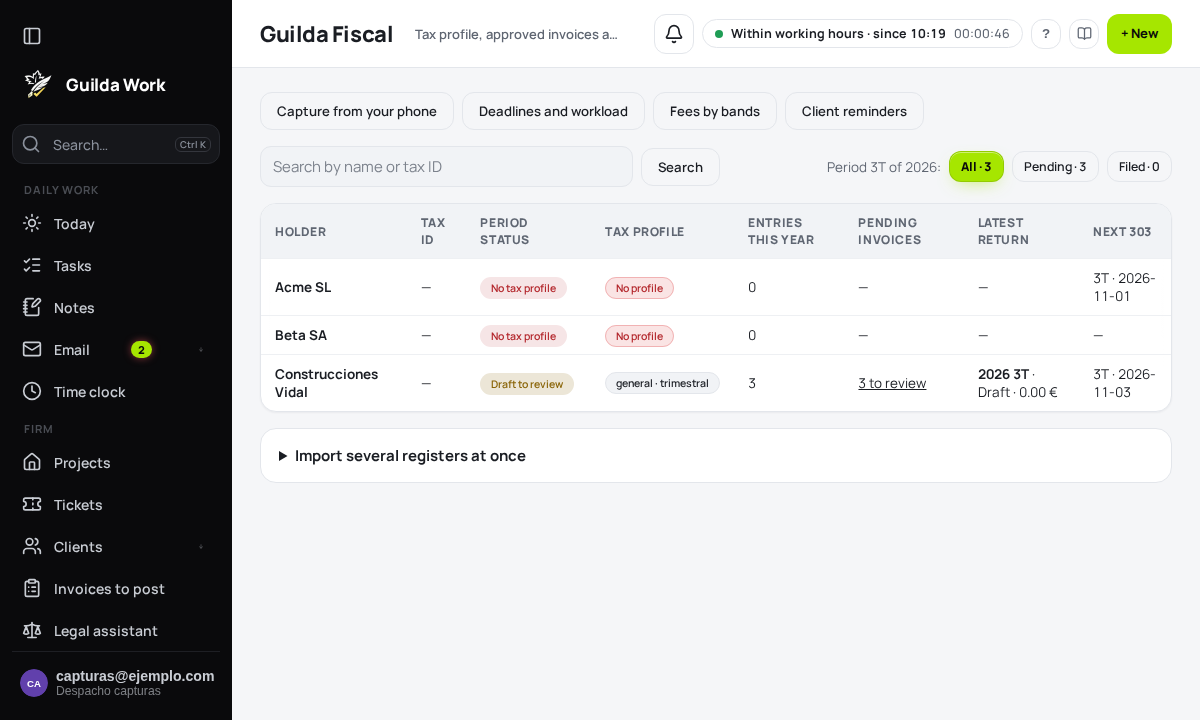
The portfolio
When you open it you see the portfolio: one row per client with their tax ID, the period status (for example "No entries"), the tax profile (scheme and frequency) and the year's entries. Filter by All, Pending or Filed, and search by name or tax ID.
The header gives you Capture from your phone, Deadlines and workload and Reminders to clients.
The tax profile
Before calculating anything, each client needs a current tax profile: legal form, VAT scheme (general, simplified…), frequency (quarterly or monthly), residence and options such as cash accounting, SII or pro-rata.
- Open the client and press Tax profile.
- Fill in Valid from and the details. Leave Valid until empty if it is still in force.
- Save.
If the scheme or frequency changes mid-year, create a new profile with the change date: the previous one closes itself the day before. Returns already calculated do not change, because they keep their own snapshot of the data.
Alerts: what is out of the ordinary
In Tax dashboard → Alerts you see, with the reason, what is out of the ordinary with your clients: a client who stopped uploading invoices (more than three times their usual interval), an expense far above their average, a possible duplicate invoice, a form due within 7 days without the requested documents, or one already overdue and not filed. Each alert links to where it is fixed and has Create task (never duplicated). Serious ones also go into the managers' daily summary. They are clear rules, not a black box: the screen says which rule fired and with what numbers.
Proposals and «what to do now»
The Proposals inbox (Tax dashboard → Proposals) gathers what the AI and the system's rules suggest doing, today the client alerts. Nothing runs until you approve it: Approve creates the task in your name; Reject silences it and it won't come back for a month. On each client's page, at the top, you see theirs («What to do now with this client»): their proposals, the next form due and the invoices waiting for review, with a button to do it and another to ask the assistant about that client.
Reviewing an invoice read by AI
If the AI is not sure about some data in an invoice, Check first appears at the top with that data, from least to most reliable, and the cursor is already on the most doubtful one. It read the rest with confidence.
More alerts, thresholds and proposals
Besides the above, Alerts also fire when the quarter's VAT drifts from the usual, when a client with requested documents does not enter the portal, and when a new supplier with a high amount appears. Management sets when each rule fires at the bottom of the Alerts screen. The Proposals inbox can also request documents or write to the client through the portal (only when you approve) and set the sub-account of a supplier that already has one in the a3 plan; management sees how much of each kind gets approved, to tune the rules that are almost always rejected.