 Guilda Work
Using the AI Assistant
Open in Guilda WorkAsk questions, request summaries and let it carry out actions for you.
Updated on
- AI assistant
The AI Assistant is a chat that understands your Guilda Work data and can both answer questions and carry out actions for you (create a task, clock in, search for an email...) when you ask.
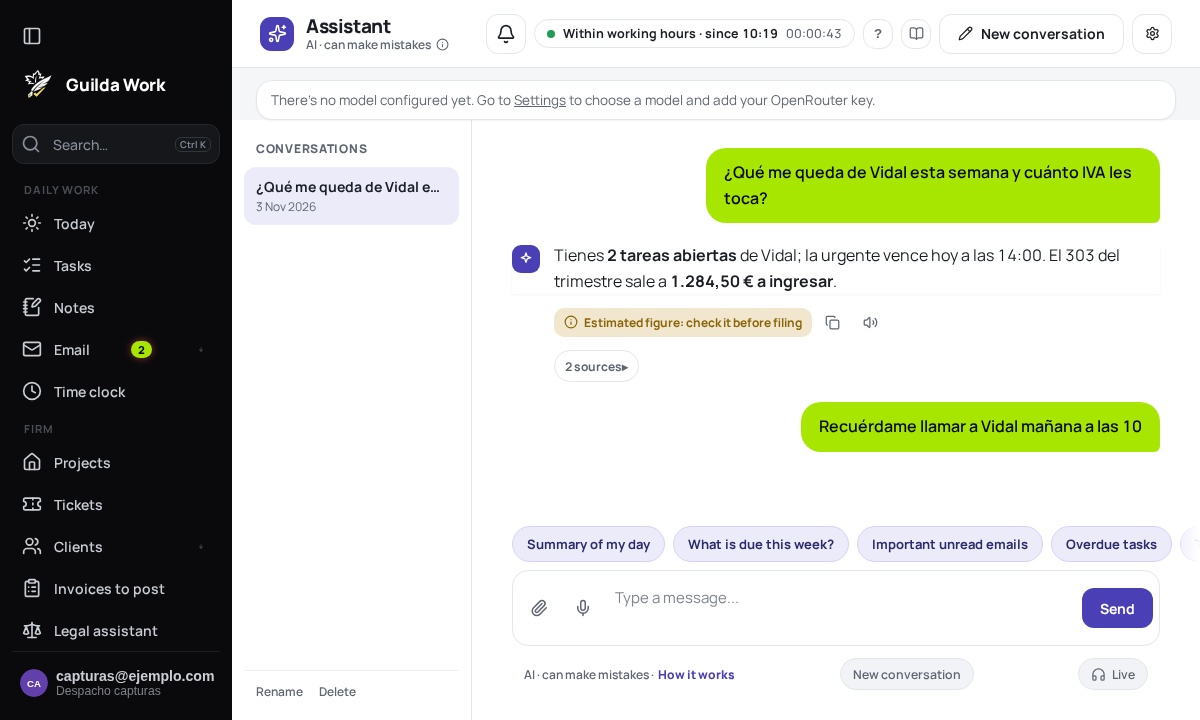
Where to find it
You have the assistant in two ways:
- Full page, in the side menu.
- Floating panel, available from any screen via the settings icon (top right) → AI Assistant — useful for asking something without losing sight of what you were doing.
What it can do
You can ask for things like "summarise my activities this week", "what tasks do I have pending with client X?" or "create a task to call the tax office tomorrow". When the request involves a real action (create, edit, clock in...), the assistant asks for your confirmation before carrying it out. You can turn on an autonomous mode (without that confirmation, except for actually sending emails) or a read-only mode: see Settings, usage limit and safety modes.
If you keep a tax calendar, you can also ask things like "mark this client's 303 as filed" or "give me a summary of how such-and-such client is doing" — it will tell you their pending and overdue deadlines, and how many documents and messages they have unreviewed.
Attach files
You can attach a file to the conversation (for example, a CSV or an image) so the assistant takes it into account when answering.
Voice mode
If your browser supports it, you can turn on Live mode to dictate your question and hear the answer aloud, without typing.
Provider, model and limit
From AI Assistant settings you choose the model and API keys, see how many queries your firm has used this month and manage your shortcuts. Everything is explained in Settings, usage limit and safety modes.
You can also use the assistant from outside: see Connect ChatGPT or Claude to Guilda Work.
The assistant is also your support
Ask it how to do something, where a screen is or how to set up your account (“How do I connect my email?”). It searches this help centre, answers with what the guides say and gives you the link to the article and to the screen where you do it. From any screen you can ask “how does this work?” and it knows which one you are looking at.
- Setting up your account: it can change your language, your profile (name, job title, phone), your alerts and “do not disturb”, always for your account and asking you to confirm. It does not change your password, email, two-step verification, theme or anything administrative: it explains how and takes you to the screen.
- Bugs and suggestions: if the help does not cover your question, or you find a bug or have an idea, it drafts a ticket (bug or suggestion) and, if you say yes, files it under Tickets.
- It does not use up your limit: support questions do not count towards your firm's monthly AI limit.
Your personal data
Before a query is sent to the AI model, Guilda Work replaces names, NIFs, IBANs and other personal data with labels. See Personal data protection in the assistant.
Invoices to post
If your firm uses the posting module, the assistant can help with your clients' invoices. Open an invoice and ask "why does this invoice have warnings?" or "explain this invoice": it knows which one you have open and looks at its warnings, duplicates and problems. It can also:
- tell you what is left to close for a quarter, for all clients or one, to draft a summary;
- review the safe invoices in one go for a client, check a tax ID in VIES, show you the account map or the reading quality;
- cross the listing a3 returns against what was exported;
- read the conversation with the client about an invoice and write to them about what is missing. Messages to the client are always confirmed before they are sent, even in autonomous mode.
Actions that change data ask for your confirmation, like the rest.
One plan, one confirmation
When you ask for something that involves several accounting actions (reviewing the safe ones, writing to clients, generating the file), the assistant first shows you a numbered plan and, if you approve it, runs it with a single confirmation. The card lists each step with its data, and messages to clients with their full text. The steps run in order, with the usual permissions, and if one fails it stops (what was already done is not undone). There are at most ten steps.
Photos and PDFs in the chat
With the paperclip you can also upload photos (JPG, PNG) and PDFs of up to 8 MB. If it is a client's invoice, tell it which client and the assistant turns it into an invoice pending reading and reads it with AI.
Ask your data, with sources
The magnifier icon in the assistant opens Ask your data: you ask a question («what did Ferretería Paco ask me about VAT?») and it answers only with what is in your notes, tasks, email, tax calendar and clients, citing each source with a number [1] and a link. If the answer cites no source, it tells you: treat it with caution. The AI only sees the excerpts found.
Client memory
Each client's page has a short Memory («prefers WhatsApp, changed address in March»). You write or confirm it; Suggest an update with AI leaves a draft based on what the client wrote in the portal, which you can accept or dismiss. The AI never changes the memory on its own, and the assistant question about that client already includes it.
Rating an answer
Under the latest answer there is a thumbs up and a thumbs down. If it did not help, you can say why (a fact is wrong, it misunderstood the question, it fell short). Only the yes or no and the reason are stored, never the conversation. The firm's management sees the count in Assistant settings › Is the assistant helping?
Asking about firm intelligence
If your firm runs the accountancy module, the assistant also reads firm intelligence: “which clients are at risk?”, “which weeks are the busiest?”, “compare this client's third quarter with the previous one” or “record a tax agency request for this client due on the 30th” (it shows you that last one before saving it). There are three ready-made shortcuts above the text box and on the Firm intelligence home page. Profitability per client is only shown to management.
Related guides
Settings, usage limit and safety modes
How many queries you have left, keys, read-only mode and shortcuts.
Connect ChatGPT or Claude to Guilda Work
Use your notes, tasks and clients from ChatGPT or Claude with a connector.
Email reminders with the assistant
Ask it to remind you of something or warn you before a deadline.