 Guilda Work
Notes
Open in Guilda WorkNotes with a title and formatting, pinned, shared and with attachments.
Updated on
Notes are your notebook inside Guilda Work: notes with a title and formatting that you can organise by project, link to a client, share with a colleague and attach files to.
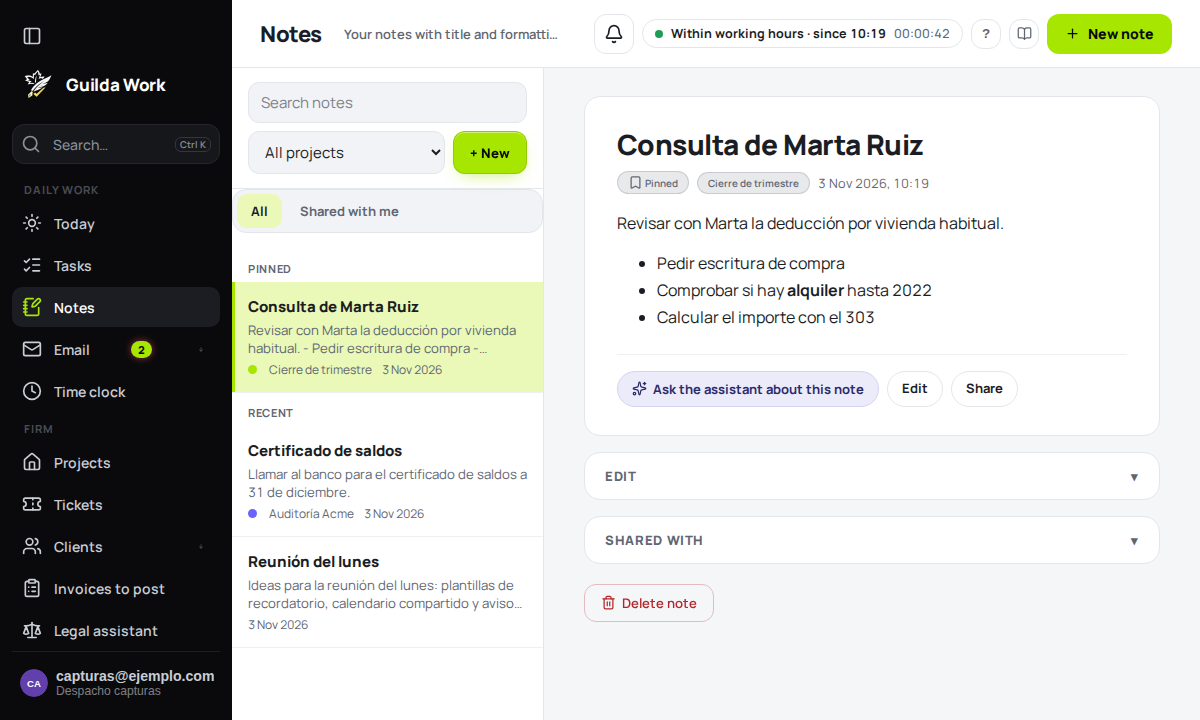
Create a note
Press New (or use the Ctrl+Alt+N shortcut, or + New › Note in the top bar). Fill in:
- Title (optional): a short title to find it easily.
- Text: the content of the note.
- Project: where to save it (or No project).
If you just want to jot something down on the fly, quick capture saves a note with a single text (Enter to save, Esc to cancel).
Formatting
The text supports simple formatting:
**bold**and*italic*.- Lists with
-or1.. - Links with
[text](https://...); bare web addresses are also turned into links.
Pin, search and filter
Pin this note to the top places it in the Pinned section, before Recent. In the list you can Search notes, filter by project and switch between All and Shared with me.
Client, task and email
A note can be linked to a client. If it originates from a task or an email (for example with Save note while reading a message), under Links and files you will see where it comes from.
Attachments
Under Manage attachments you can upload images, PDFs or text, up to 5 MB each and with a maximum per note (the screen itself tells you). They can be downloaded or removed whenever you like.
Share a note
Under Shared with add a colleague from your firm and choose their permission: Can edit (collaborates) or Read only. Whoever receives it can Leave this note. If you share nothing, nobody else sees the note.
Project notes
Inside a shared project, the Notes tab gathers the team's notes: everyone taking part in that project sees them. Your personal record remains private.
Delete
Delete note sends it to the Trash, from where you can recover it.